Link values and review source updates
After you tag the filing, link supported values to their sources before you build and check a version.
Who can do this
Linking a fact to a source cell needs content edit access, tag edit access and Source files access. A Fact editor alone cannot do this. Formal review locks content and tag edits, including edits by owners and admins.
Before you begin
- You can open the source file and the filing.
- The filing has the fact or table cells that you want to link.
Choose the source
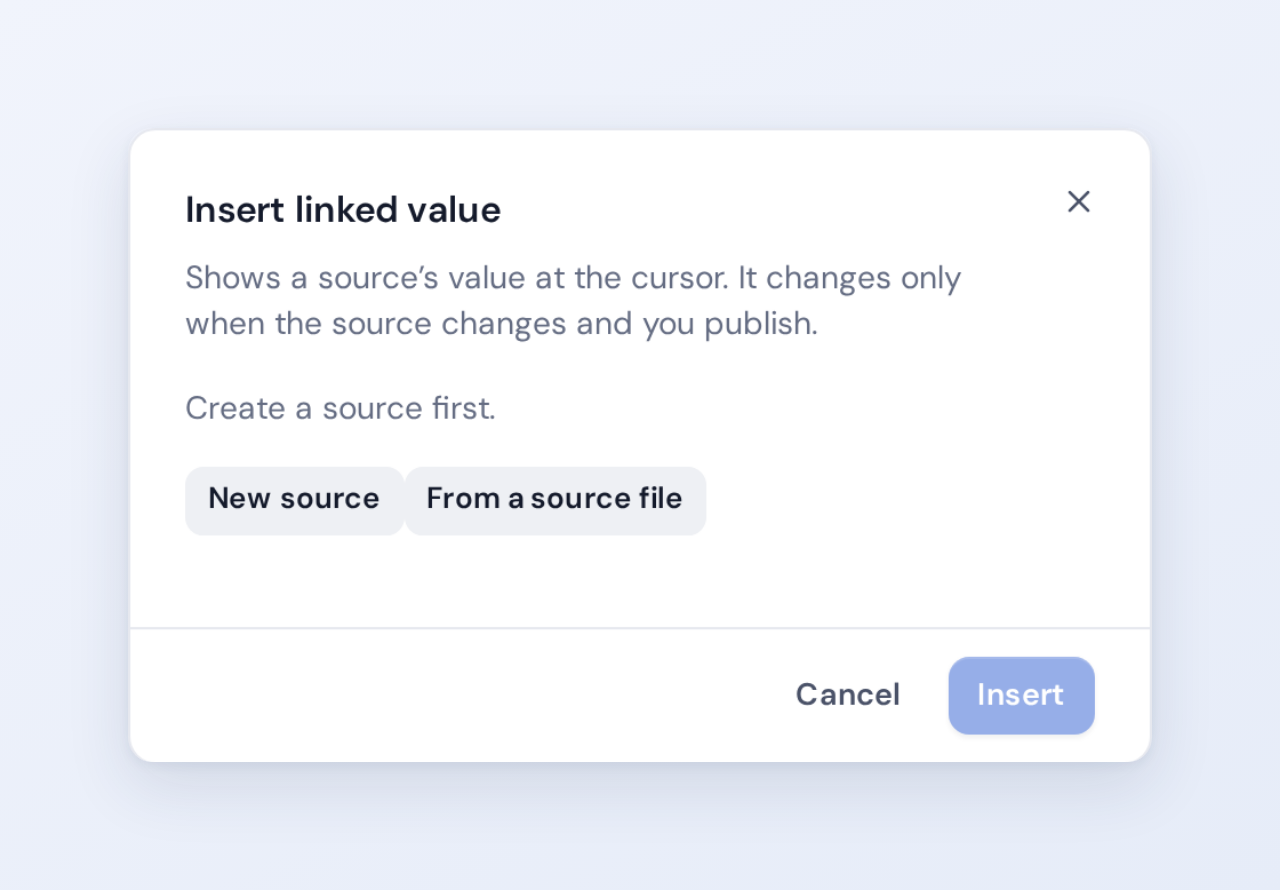
- Open Link value in the editor.
- Choose Link to a cell in a source file.
- Select the Excel source cell.
- Select the destination fact.
- Review the link before you confirm it.
For a supported table, use Link cells to a range. Review the source range and the destination cells before you confirm the links.
Check the format
Review the source value and the destination format. Check the proposed scale for a number. Resolve any format refusal before you confirm the link.
If the source-cell choice is unavailable, check your permissions. See Document roles.
Preview and publish updates
- On the Data tab, click Preview update.
- Review each proposed value change.
- Resolve any blocked update.
- Click Publish N links when the reviewed changes are ready.
Publish links opens the same review. The tagged value keeps its current value until you publish. The source and fact must have matching data types. For a tagged source, the unit and period must also match.
Review newer source content
- Open Sources used.
- Find the file with a newer version.
- Click Compare and replace, where offered.
- Review the comparison.
- Choose Replace or Keep mine.
A newer source version does not replace filing content automatically. Replacing tagged content also needs tag edit access.
Review changed facts again
A changed fact value can reset verification and approval. Review the changed facts again. Build a new version and rerun checks before formal review.
Next
Confirm or move the taxonomy year, then build and check a version.