Format a filing
After assembly and exhibits, format the filing before you complete its tags and checks.
Who can do this
The document owner, an organization admin or a person with the Editor document role. A formal review locks content changes.
Before you begin
- You arranged the documents and sections.
- You checked the exhibits.
- The filing opens for editing with text that can reflow.
A PDF annual report uses a fixed layout. Its pages do not reflow through these formatting steps. Continue with tagging for that report.
Set the page layout
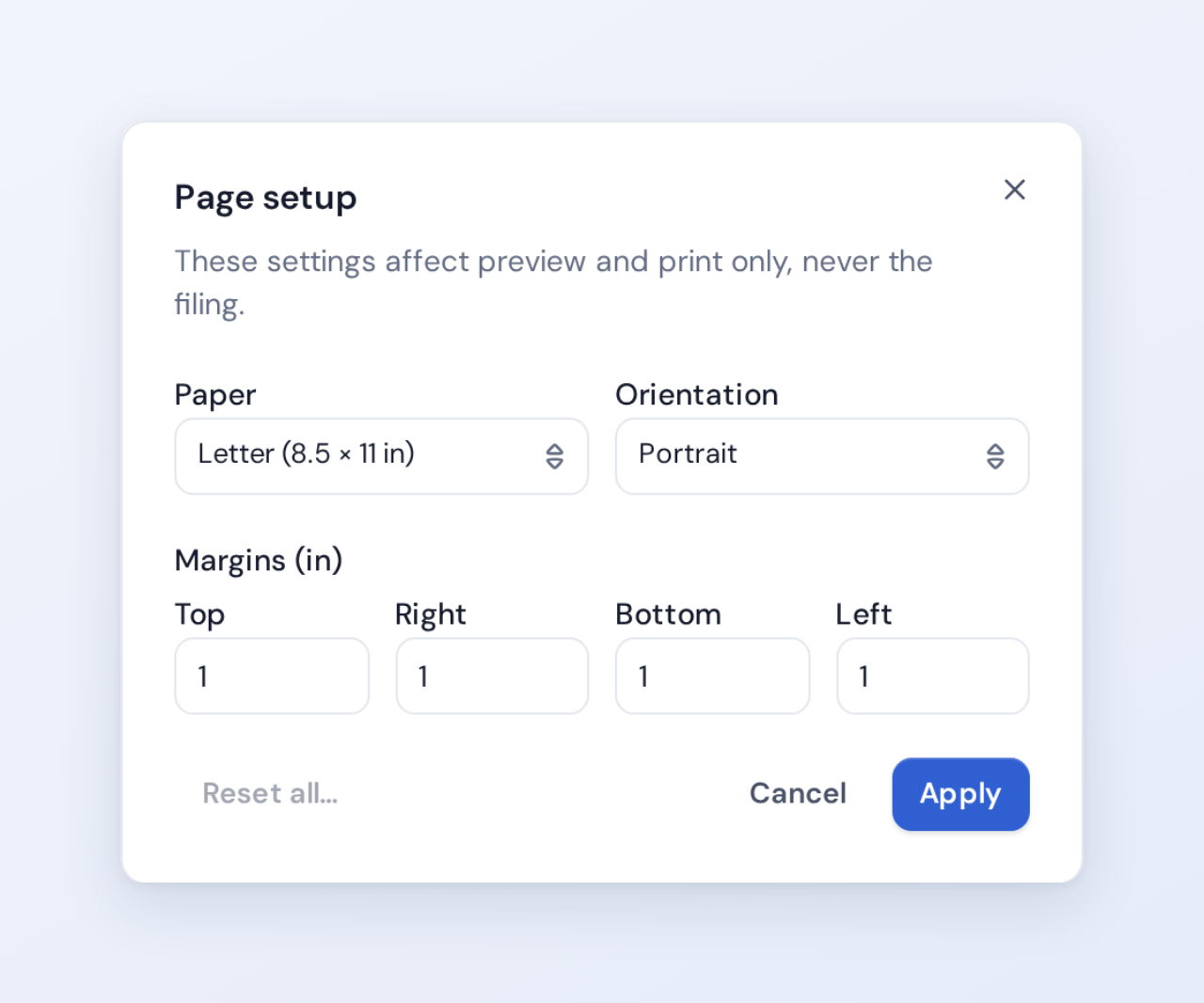
Page setup affects preview and print only. These settings do not change the filed package.
- On the Home tab, click Page setup.
- Choose Paper.
- Choose Orientation.
- Set the margins in inches.
- Click Apply.
- Inspect the result in Pages.
Format the content
Use the Home tab to format the open section.
- Select the text to format.
- Choose Font family as needed.
- Choose Font size as needed.
- Open Headers and footers to check repeated page content.
- Place the cursor in a table.
- Open Table properties to check its display settings.
Use Document font for the filing's default body font. Use Page break where a new page must start. Check the result in Pages.
Apply filing formatting
Filing format offers separate passes for the open section. Each pass shows what it will change or why it cannot run.
- Open the section to format.
- On the Layout tab, click Filing format.
- Read the pass description and its count or status.
- Click that pass's Apply button if the change is correct.
- Read the result below the pass.
| Pass | What it changes |
|---|---|
| Page break | Inserts a page break at the cursor. |
| Separator rule | Inserts the section separator at the cursor. |
| House table style | Applies the shared table settings to the table at the cursor. |
| Re-link the contents | Links this section's contents rows to the headings they name. |
| Return-to-top links | Adds missing return links below headings in the section. |
Check Style guide before you apply House table style. Repeat the required passes for other sections. One Apply does not format every section.
Inspect Pages and output
- Switch to Pages.
- Inspect tables, page breaks, headers and footers.
- Export a review copy if needed.
- Compare the output with the filing.
A review PDF helps you check appearance. It does not prove that the EDGAR package is ready.
Build a saved version after your changes. Not ready to file means the version still has problems. Use Check filing and Filing Readiness before submission.
Check the associated files
Recheck Exhibits after file or link changes. Resolve missing graphics and unplaced exhibit links. BriskTag supplies generated exhibits 101 and 104 during the filing build.
A filing fee exhibit has its own row when it applies. Complete that row before the final readiness check.
Inspect the Links report
The Links report lists uses of Source files, their versions and update decisions. It can show the current filing or a saved version.
- Open Sources used in the editor.
- Click Open the links report.
- Choose Live (now) or a saved version under As of.
- Review each source version, state and decision.
Use Sources used to compare newer content before you replace it or keep your current content. A newer source version does not replace document content by itself.
The Links report does not validate exhibit links or links between filing documents. Check exhibit links through Exhibits.