Assemble a filing
After import review, arrange the filing's documents and sections before you complete its exhibits.
Who can do this
The document owner, an organization admin or a person with the Editor document role. A formal review locks content changes. See Document roles.
Before you begin
- The filing opens for editing.
- You completed import review.
- You know which documents and exhibits belong in the filing.
Choose the filing document
Some filings contain more than one tagged document. A 40-F set can contain the cover form and tagged exhibits. Each document has its own tab and EDGAR file name.
- Open the filing in the editor.
- Choose the document tab, if tabs appear.
- Choose a section in Contents.
A document tab moves to that document. It does not filter Contents, search or readiness. Those controls still cover the whole filing.
Arrange the sections
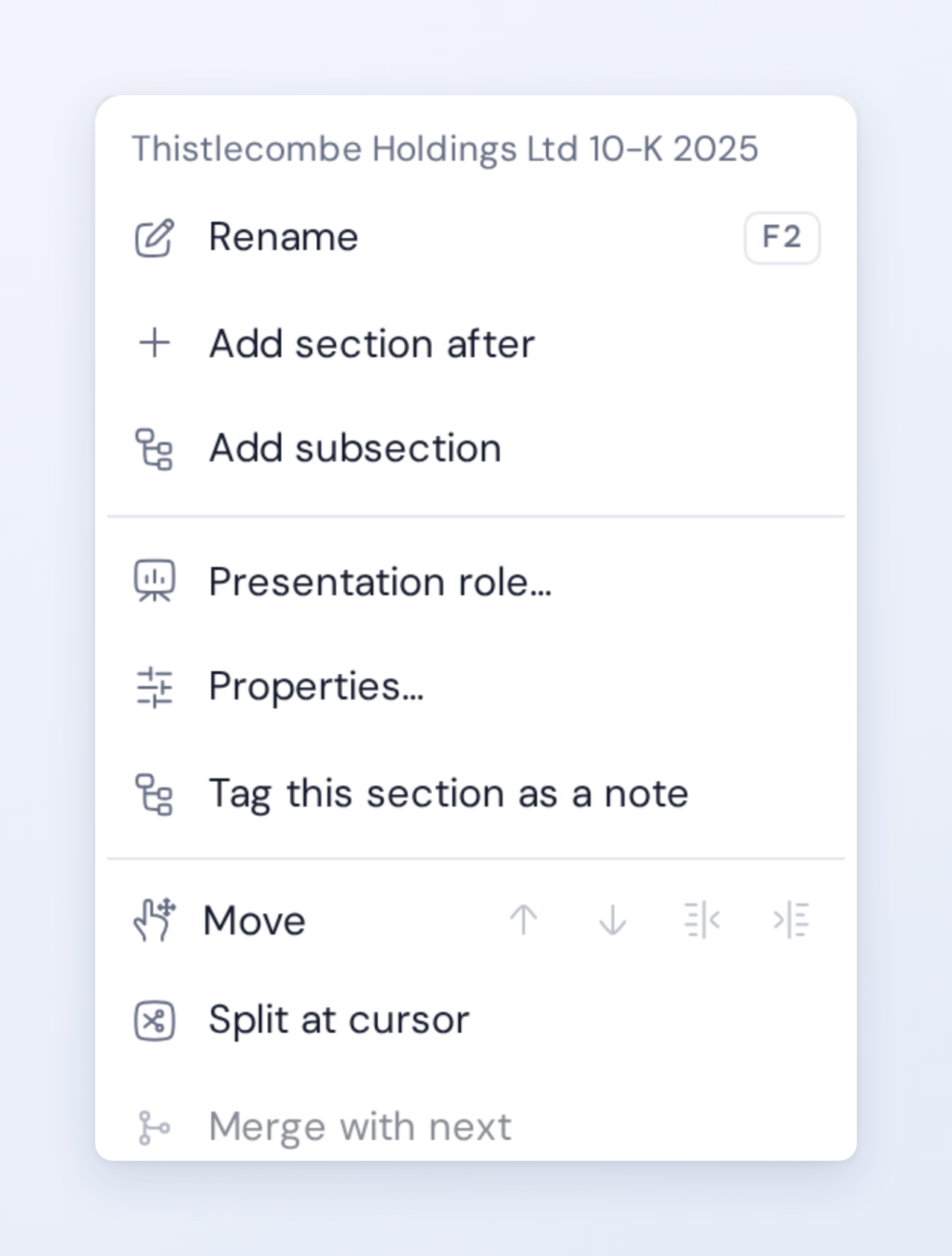
Use the section menu in Contents for each change.
| Task | Command |
|---|---|
| Add content after a section | Add section after |
| Add a child section | Add subsection |
| Change the section name | Rename |
| Change section order | Move up or Move down |
| Change the section level | Indent or Outdent |
| Start a section at the current paragraph or table | Split at cursor |
| Append the next section to the open section | Merge with next |
For a split, open the section first. Place the cursor in the paragraph or table that must start the new section. Review the split dialog before you confirm.
For a merge, open the first section. Choose Merge with next. Review the next section's name before you confirm. Split and merge keep the tags with the content.
Wait for text changes to save before a structural change. If a command is unavailable, read its reason.
Delete section removes the section and its content from the live filing. A tagged section must be untagged first. Saved versions do not change.
Complete the cover
- Open the cover section.
- Compare its company identity and reporting period with the profile.
- Correct the cover content where needed.
For SEC filings, check the CIK and form. For ESEF reports, check the LEI and report language. Ask an organization admin if the profile needs a change.
Use Check filing to find cover and profile problems. See Check a filing. Complete the final check after the content and tags are ready.
Add source content
Use From files to prepare content from Source files before you insert it.
- Place the cursor at the insertion point, if you want content inside a section.
- On the Insert tab, click From files.
- Choose the source file and the content to use.
- Choose new sections or insertion at the cursor, where offered.
- Prepare the content.
- Review the prepared content.
- Click the Insert button when the preview is correct.
The Insert button names the content it will add. Read any refusal before you try again. The task tray shows progress when BriskTag adds the content in the background.
Check document types
Imported tagged documents need the correct EDGAR document type. During import review, an unknown type needs an explicit choice. Do not leave it unknown.
Where document tabs appear, use the document settings to review the type, description and file name. The cover keeps the filing's form type.
Add document appears only when the filing supports another tagged document and you can edit its content.
- Click Add document, if offered.
- Choose the document type.
- Check the file name.
- Confirm Add document.
The new document starts with a blank section. Add its content in the editor. Use Exhibits for files attached alongside the filing.
Next
Complete the exhibits before you format the filing.