Prepare and export an ESEF package
After tagging and review, follow the ESEF branch to export the certified package, file externally and keep the evidence.
Launch support covers UK and DE filers, English and German reports, and the 2024 and 2025 taxonomies. Other markets are coming soon.
UK and DE filers can prepare and export. You can record a filing for an EU or EEA home member state. UK filers cannot record a filing in BriskTag. Keep the external evidence with your filing records.
Who can do this
Preparers complete the report. Reviewers and certifiers complete their review steps. A Submitter, the document owner or an organization admin can record, correct or void an ESEF filing record. People with document view access can read the record.
Before you begin
For the record step, meet these requirements in order:
- Use an ESEF report.
- Use an active organization.
- Use a role with submission authority, or document ownership or organization admin access.
- Certify the latest review round first.
- Keep the approved version current. If the document changed after approval, certify the new version first.
- Export the certified version first.
Steps 1–5 cover preparation and export for UK and DE filers. Steps 6–8 apply only to EU or EEA records.
Choose the ESEF profile
- Select the company profile for the ESEF report.
- Check the LEI.
- Check the reporting period and report language.
- Check the taxonomy bundle and year.
Use the profile that matches the report's issuer and period.
Import the report
- Open Start a filing in Documents.
- Choose ESEF report package, HTML or inline XBRL, or PDF annual report, as applicable.
- Follow Import and review a filing.
A PDF annual report opens as a fixed layout for tagging. It does not offer normal text editing.
Complete ESEF tags
- Open the XBRL tab in the editor.
- Complete the report's concepts, contexts, dimensions and units.
- Review ESEF coverage where the report supports it.
- Review Anchoring for company extensions where available.
See Edit and tag a filing for the tagging steps.
Check, approve and certify
- Build the saved version.
- Run Check filing.
- Fix the blocking errors.
- Read the ESEF DQR findings.
- Complete review, approval and certification.
Give a reason for each warning before certification. If the check is stale, run it again on the current content.
Export and file externally
- Export the certified version through Export → Filing package, where available.
- Alternatively, open Filing Readiness and click Download package.
- File the package outside BriskTag through the applicable external process.
- Keep the exact package and the external receipts.
Use one of the two export routes. BriskTag does not submit, sign or seal the ESEF filing.
For a UK filing, continue to your filing records after this step. The record steps below do not apply.
Record the filing
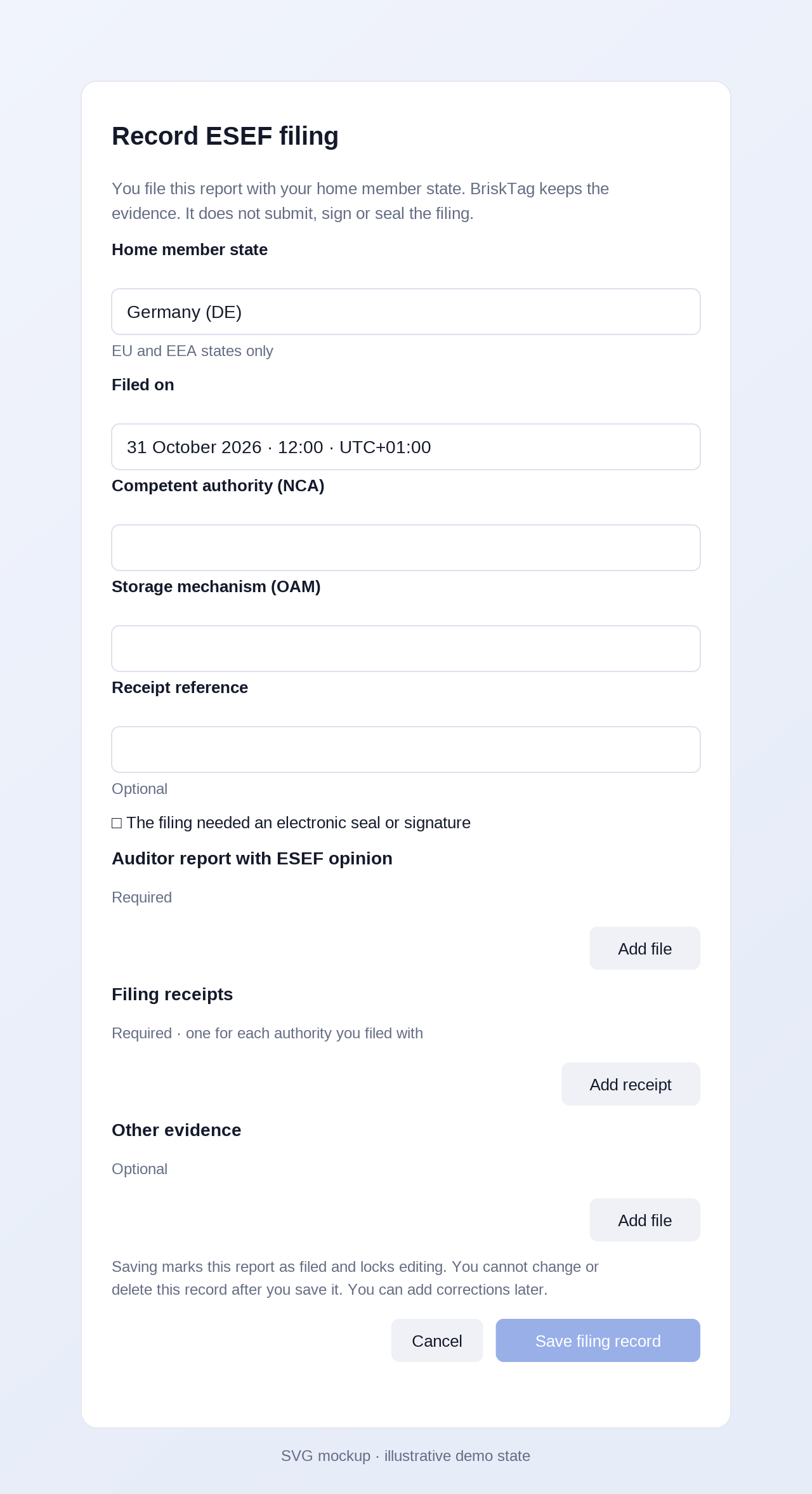
This step applies to an EU or EEA home member state. Use the actual home member state. A saved record keeps your evidence; it does not prove authority acceptance.
- On the File tab, click Record ESEF filing.
- Choose the exported package for the certified version.
- Check the issuer, period, version and file name.
- Compare the SHA-256 hash with the exact file you filed.
- Tick the confirmation only if you filed exactly that package.
- Select the Home member state.
- Enter the filed date, time and UTC offset from the authority's receipt.
- Enter the Competent authority (NCA).
- Enter the Storage mechanism (OAM).
- Enter the Receipt reference, if used.
Add the required evidence before you save:
- Add the Auditor report with ESEF opinion.
- Add Filing receipts for each authority you filed with.
- If applicable, select The filing needed an electronic seal or signature.
- Add the seal or signature evidence when required.
- Wait until each evidence file is ready.
- Check the details.
- Click Save filing record.
Each Add control offers From Source files or Upload new file. Upload needs separate permission. You can choose an existing file if your role cannot upload.
Read the saved record
Saving marks the report as filed in BriskTag and locks edits. The document and review round have submitted status.
Open Filing history to read the record. Keep the recorded package, hash and evidence. The authority's receipt remains external evidence.
You cannot change or delete the saved record. Add a correction if the record needs more evidence.
Correct or void a record
Use Add correction to append a correction file. A correction does not replace the original evidence.
To void a wrong record:
- Open the record in Filing history.
- Choose Void.
- Enter the reason.
- Read the explanation before you confirm.
You cannot undo a void. A void keeps the history and restores the certified state. It does not withdraw the external filing or notify the authority. Certification still locks content edits; use the review controls before you change the report.
Next: Keep records after filing.