Your first filing: from import to SEC test
This guide follows one filing from import to an SEC test submission. A test submission checks the filing with EDGAR. It does not publish the filing.
Who can do this
The person who prepares the filing. Only the author of the filing or an organization admin can accept an import. Each review step needs its own document role. See Document roles.
Before you begin
- You have the source file, for example a Word document or an inline XBRL file.
- For an HTML or inline XBRL file, you have a profile for the company, or you can create one.
Start a filing
- Go to Documents.
- Click Start a filing.
- Choose a source from the list below.
- Follow the steps for that source.
| Source | What to use |
|---|---|
| Word document | A .docx draft. |
| HTML or inline XBRL | An HTML file, or a ZIP with its images and tags. |
| PDF annual report | An ESEF report from a PDF. It opens in a fixed layout for tagging. |
| Filing from EDGAR | The filing ZIP from EDGAR. |
| ESEF report package | An .xbri or .zip report package. |
| Blank filing | No file. Start with an empty section. |
| Filing fee exhibit only | No file. Fill the fee form for a prospectus filed through another agent. |
For a supported source already in Source files, click Choose from Source files instead of uploading a file.
For an HTML or inline XBRL file, and for a filing from EDGAR, BriskTag reads the company, CIK, form and period from the file. It shows them under Read from the package. It selects the profile that matches the CIK and the period.
For an ESEF package, Read from the package shows the LEI, regime, taxonomy year and report language.
If you choose a profile for a different CIK, BriskTag shows This profile is for a different company and blocks the import. Choose the matching profile, or create one.
Review the import
A Word import opens Import review.
- Read the conversion report.
- Compare the report with your source document.
- Tick the check box.
- Click Accept and continue.
Only the author of the filing or an organization admin can accept an import. The task tray shows the remaining import steps.
If the review shows Fix these before you accept, the list names each problem. If a problem can be fixed, check the profile and click Import again. If the list says the tags cannot be fixed here, contact support.
To discard an import, click Reject and delete import and confirm. If a structural check fails, reject the import and import the file again.
Edit and tag in the editor
Some SEC imports cannot open for editing. They open as filed, read-only, with the reason shown.
An editable filing opens in the editor. Edit text and tables by section. Add and check tags in the XBRL tab. Autosave keeps your changes.
Select a tagged fact to open the fact panel. The Review tab shows the text as it reads in the document. For a number, it also shows the XBRL value and its scale.
The footer of the panel shows the next review step first: Mark verified or Approve, as your role allows. It also has Edit and More actions. More actions holds Tag again and Delete.
When you tag a number, type in the unit field to filter the units. Set the scale in the panel. The accuracy comes from the table header. The panel says From the table header until you change it.
For more steps, see Edit and tag a filing.
Autosave does not build a document version. Click Build version N when you need a saved version. BriskTag chooses the number.
A saved version can say Not ready to file. Read its problems and fix them before filing.
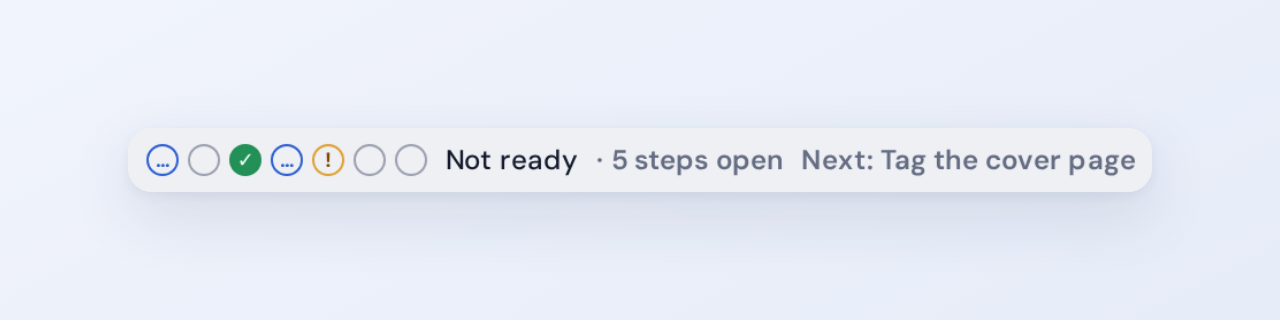
If Check filing says that EDGAR no longer accepts the taxonomy year, see Move a filing to a newer taxonomy year.
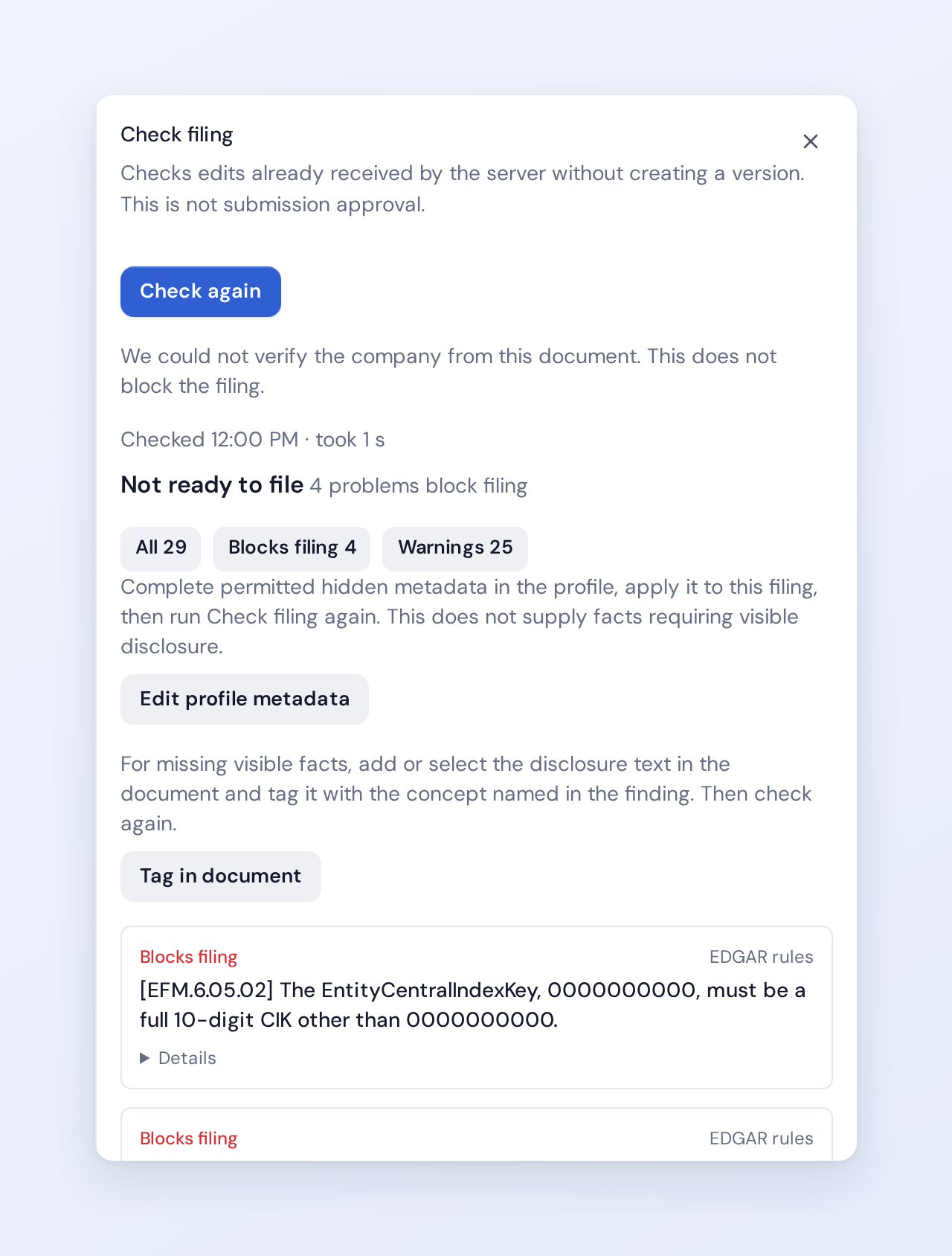
Run Check filing
- On the Review tab, click Check filing.
- Fix the errors.
- Click Check again.
A passing check is not approval to submit. See Check a filing for the result groups and stale checks.
Send for review and approval
- On the Review tab, click Review rounds to send the document for review.
- Reviewers verify facts. Approvers approve them.
- A certifier, the document owner or an organization admin clicks Certify.
Certify needs a current Check filing result with no blocking errors. Give a reason for each warning before you certify.
If Check filing could not run, an organization admin can certify with a reason.
You can use each step only when the document has the right status. Continue to Filing Readiness after certification.
Check Filing Readiness
- On the File tab, click Filing Readiness.
- Read the list of blockers.
- Fix each blocker.
Send the test filing
Your organization needs EDGAR tokens and the company CCC. Ask an organization admin to configure them in Organization → EDGAR Filing.
If the dialog asks for your token, click Add my EDGAR token. Save a token for the selected EDGAR environment before sending.
- On the File tab, click Submit to EDGAR.
- Keep the environment on Test (Beta) system and the submission type on Test submission.
- Click Send TEST filing.
This step is for SEC filings only. The command is not available for other filings.
Live filing is not selectable when your organization has no live access. The dialog then says so. Send a test instead.
Pre-flight checks run before you send. For each package problem, they show the file, the problem and a fix. Fix every error first. For example, EDGAR accepts only .jpg and .gif images. For an 8-K or 8-K/A, select at least one item under 8-K items (required).
Read the result
The dialog shows the result with the accession number and the form type. The task tray also keeps the result.
- To see every attempt, click Filing status at the bottom of the dialog.
- To ask the SEC again, click Refresh all.
- Select an attempt to see the action after Next:.
| Status | What to do |
|---|---|
| Pending | Wait for the SEC to finish. |
| Accepted | Nothing. |
| Accepted with warnings | Read the warnings before the live filing. |
| Suspended | Fix the cause, build a new version, and send a new test. |
| Not accepted | Read the message, fix the cause, and send again. |
| Unknown outcome | Look the filing up in EDGAR. |
While the outcome is unknown, BriskTag blocks a second send. This stops the SEC from getting a duplicate. An organization admin records what you found:
- Click SEC has it and enter the accession number, or click SEC does not have it.
- Click Record outcome.