Review, approve and certify a filing
After you build, check and share the filing, complete formal review and certification before the SEC or ESEF filing step.
Who can do this
An Editor, the document owner or an organization admin can start a review. Reviewers verify facts. Approvers and Certifiers can approve. Certifiers, the document owner and organization admins can certify. The review initiator cannot approve or certify that round.
See Document roles for the full role table.
Before you begin
- Finish the content and tags for the version you want reviewed.
- Give named access to the people who must review it.
- Have another active Approver or Certifier available for the formal round.
- Run Check filing on the current content.
Give each person the correct role
- Ask the document owner or an organization admin to open Collaborate.
- Ask them to assign the roles each person needs.
- Check that each formal approver has active access.
See Give a client review access for named invitations.
| Task | What it means |
|---|---|
| Client comments | Feedback on the document. Comments do not approve the filing. |
| Fact verification | A Reviewer checks a tagged fact and marks it verified. |
| Fact approval | An Approver or Certifier approves a tagged fact. |
| Round approval | Each selected approver decides on the formal review round. |
| Certification | An authorized person signs off the approved, current version after the check gate. |
A fact approval does not replace round approval. Comments and activity support review; they do not replace approval or certification.
Prepare the version
- Click Build version N in the editor.
- Read any Not ready to file result.
- Fix the reported problems.
- Run Check filing on the final content.
- Rerun the check if it becomes stale.
BriskTag chooses the version number. Autosave keeps edits but does not build a saved version.
See Check a filing for blocking errors, warnings and stale results.
Review the facts
- Select a tagged fact.
- Open its Review tab.
- Check the displayed text and the XBRL value.
- Click Mark verified or Approve, as your role allows.
For numbers, check the scale and XBRL value as well as the displayed number. A changed tagged value resets its prior fact review. Review the changed value again.
Send for review
- On the Review tab, click Review rounds.
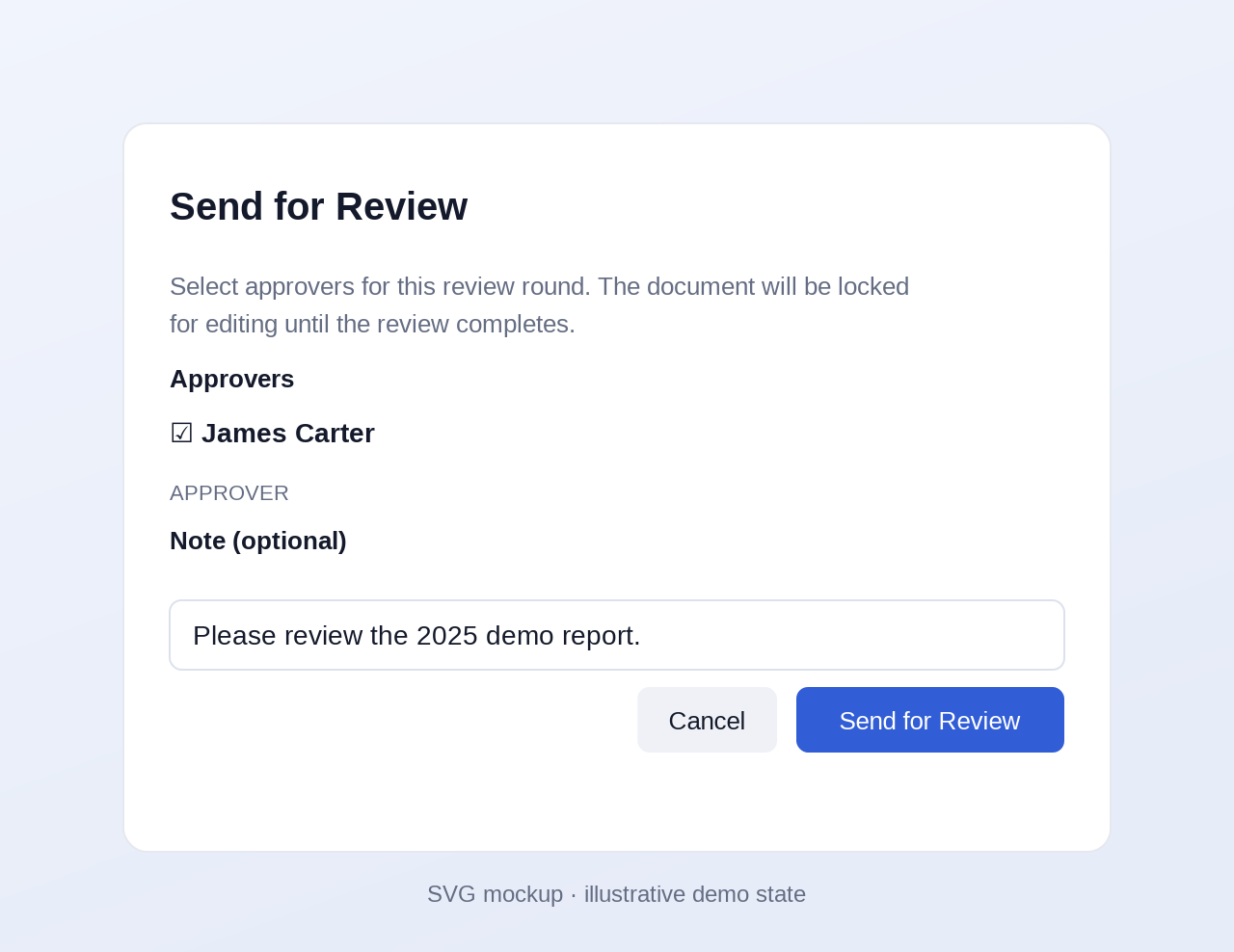
- Select the approvers in the Send for Review dialog.
- Add a note if they need context.
- Click Send for Review when the selection is complete.
The list offers active Approvers and Certifiers other than you. A pending invitation cannot supply an eligible approver.
Formal review locks content and tag edits, including edits by owners and organization admins. The person who starts the round cannot approve or certify it.
Approve or request changes
-
Open the filing in the editor.
The approval panel appears when a review round is active.
-
Read the filing and the check findings.
-
Add comments where your role permits them.
-
Complete any acknowledgement the decision requires.
-
Choose Approve or Request Changes.
Each selected approver must approve before the round completes. A request for changes returns the document for edits.
An acknowledgement records that you read the findings. It does not clear validation errors or warnings. Certification has a separate check gate.
Repeat review after changes
Use the action that matches the current state.
| State | Action and permission |
|---|---|
| Review in progress | Only the review initiator can cancel the round. Cancellation ends that round before approval. |
| Changes requested | Fix the content. Build and check the new version. Send a new review round. |
| Approved, before certification | Use Reopen for changes. The initiator, a round approver, a person with certification permission, the owner or an admin can reopen. |
| Certified | Use Revoke certification before changes. This needs certification permission, document ownership or organization admin access. |
Reopening an approved round or revoking certification returns the document for changes. The earlier round remains in history. Send a new round after the changes; every selected approver must approve again.
BriskTag can refuse revocation while EDGAR may hold a filing. A submitted document needs support instead of this action.
Certify
- Confirm that the latest review round is approved.
- Confirm that its approved version is still current.
- On the Review tab, click Certify.
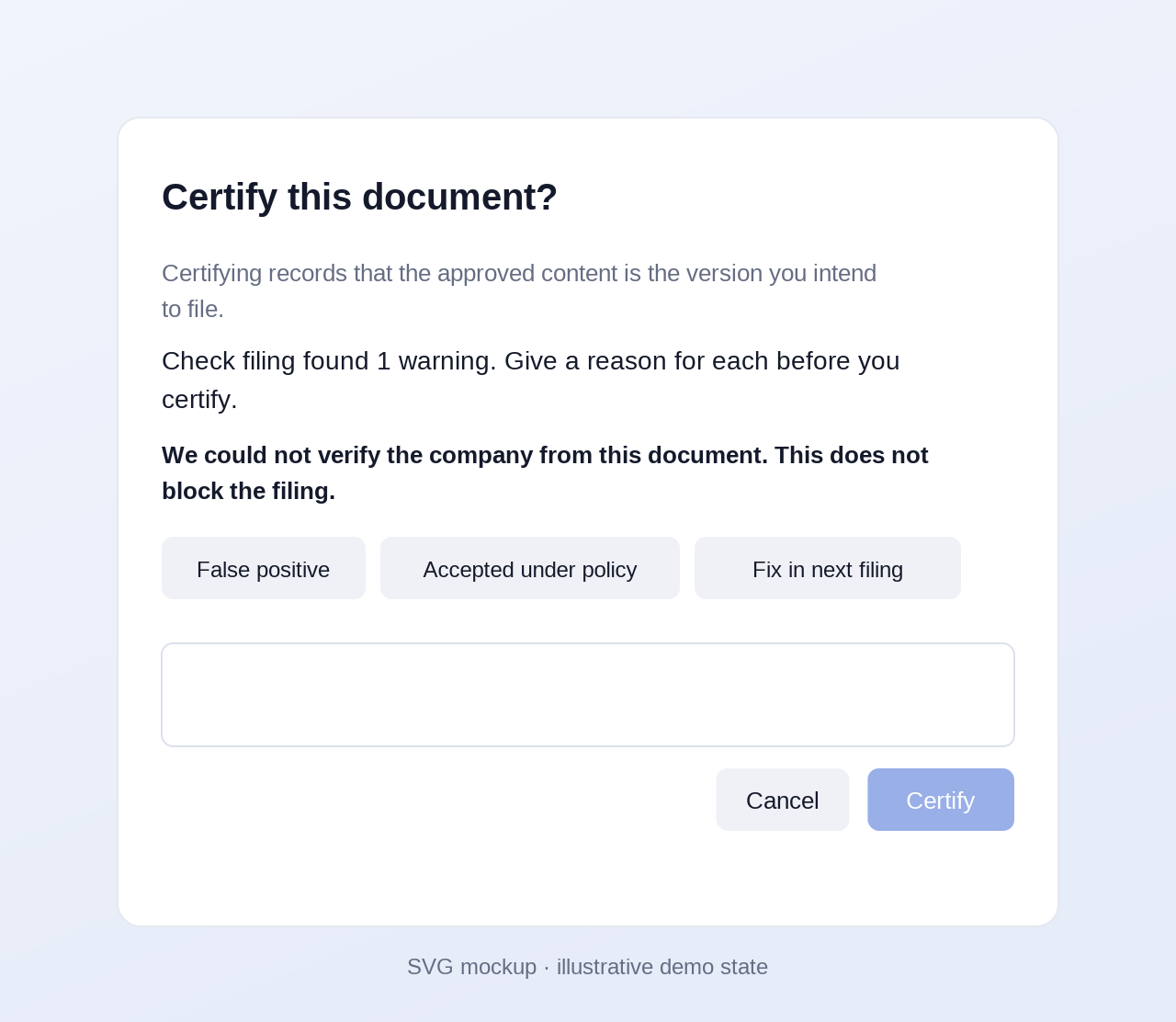
- Read the Check filing result in the dialog.
- Give a reason for each warning.
- Confirm certification when the gate permits it.
The certifier must differ from the review initiator. Missing or stale checks block certification. Fix blocking errors and run Check filing again.
If the validator is unavailable, an eligible organization admin outside the review round can certify with a reason. This exception does not clear known blocking errors.
Continue to filing
Certification completes sign-off for the approved version. The next step depends on the filing regime.
Next: Send a TEST filing to EDGAR, or prepare and export an ESEF package.