Your first filing: from import to SEC test
This guide follows one filing from import to an SEC test submission. A test submission checks the filing with EDGAR. It does not publish the filing.
1. Start a filing
- Go to Documents.
- Click Start a filing.
- Choose the source: Word document, HTML or inline XBRL, Filing from EDGAR, ESEF report package, or Blank filing.
- Choose the file and follow the steps.
For an HTML or inline XBRL file, and for a filing from EDGAR, BriskTag reads the company, CIK, form and period from the file. It shows them under Read from the package. It selects the profile that matches the CIK and the period.
If you choose a profile for a different CIK, BriskTag shows This profile is for a different company and blocks the import. Choose the matching profile, or create one.
2. Review the import
A Word import opens Import review.
- Read the conversion report.
- Compare the report with your source document.
- Tick the check box.
- Click Accept and continue.
Only the author of the filing or an organization admin can accept an import. The task tray shows the remaining import steps.
If the review shows Fix these before you accept, the list names each problem. If a problem can be fixed, check the profile and click Import again. If the list says the tags cannot be fixed here, contact support.
To discard an import, click Reject and delete import and confirm. If a structural check fails, reject the import and import the file again.
3. Edit and tag in the editor
The filing opens in the editor. Edit text and tables by section. Add and check tags in the XBRL tab. Autosave keeps your changes.
Select a tagged fact to open the fact panel. The Review tab shows the text as it reads in the document. For a number, it also shows the XBRL value and its scale.
The footer of the panel shows the next review step first: Mark verified or Approve, as your role allows. It also has Edit and More actions. More actions holds Tag again and Delete.
When you tag a number, type in the unit field to filter the units. Set the scale in the panel. The accuracy comes from the table header. The panel says From the table header until you change it.
If Check filing says that EDGAR no longer accepts the taxonomy year, see Move a filing to a newer taxonomy year.
4. Run Check filing
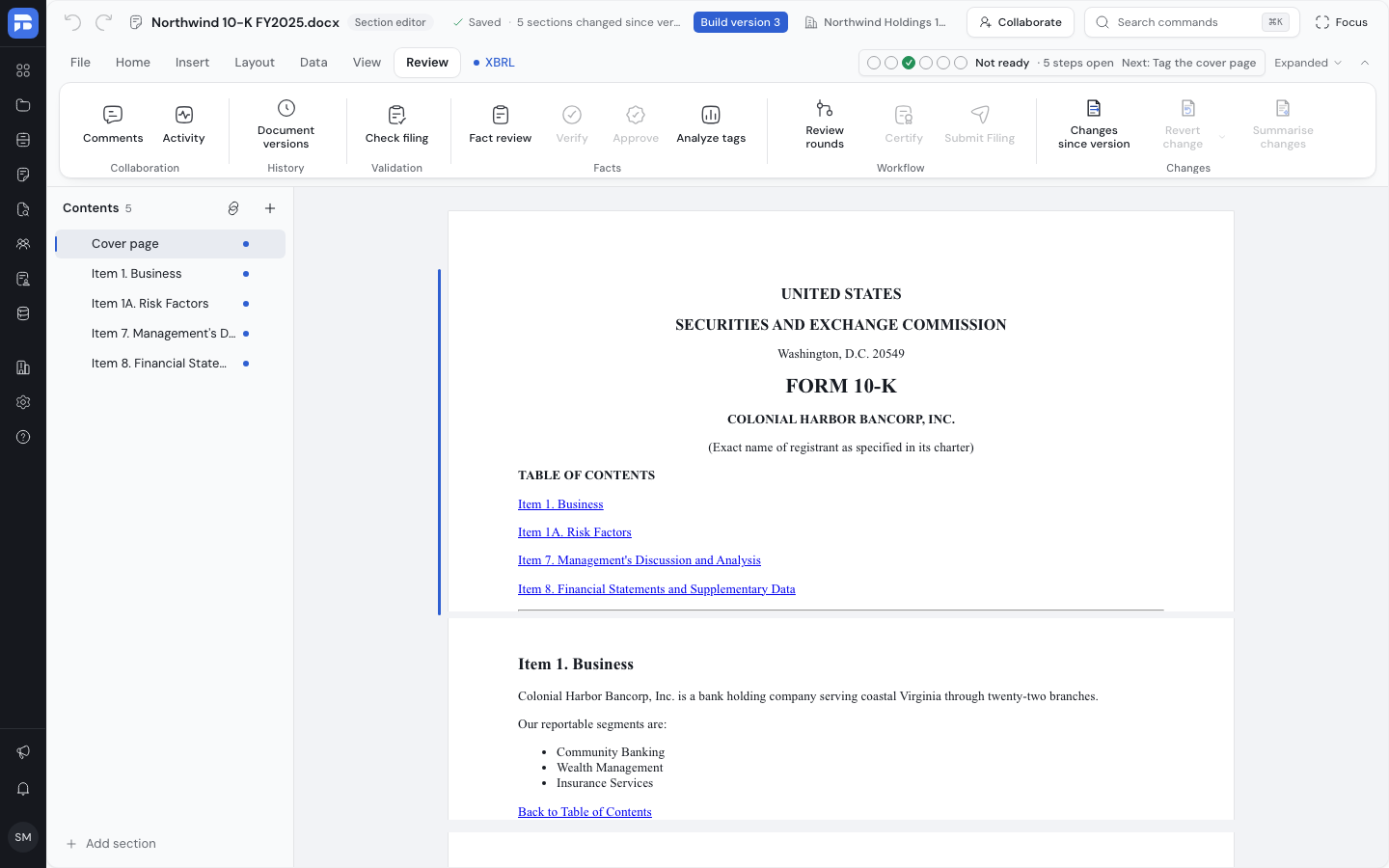
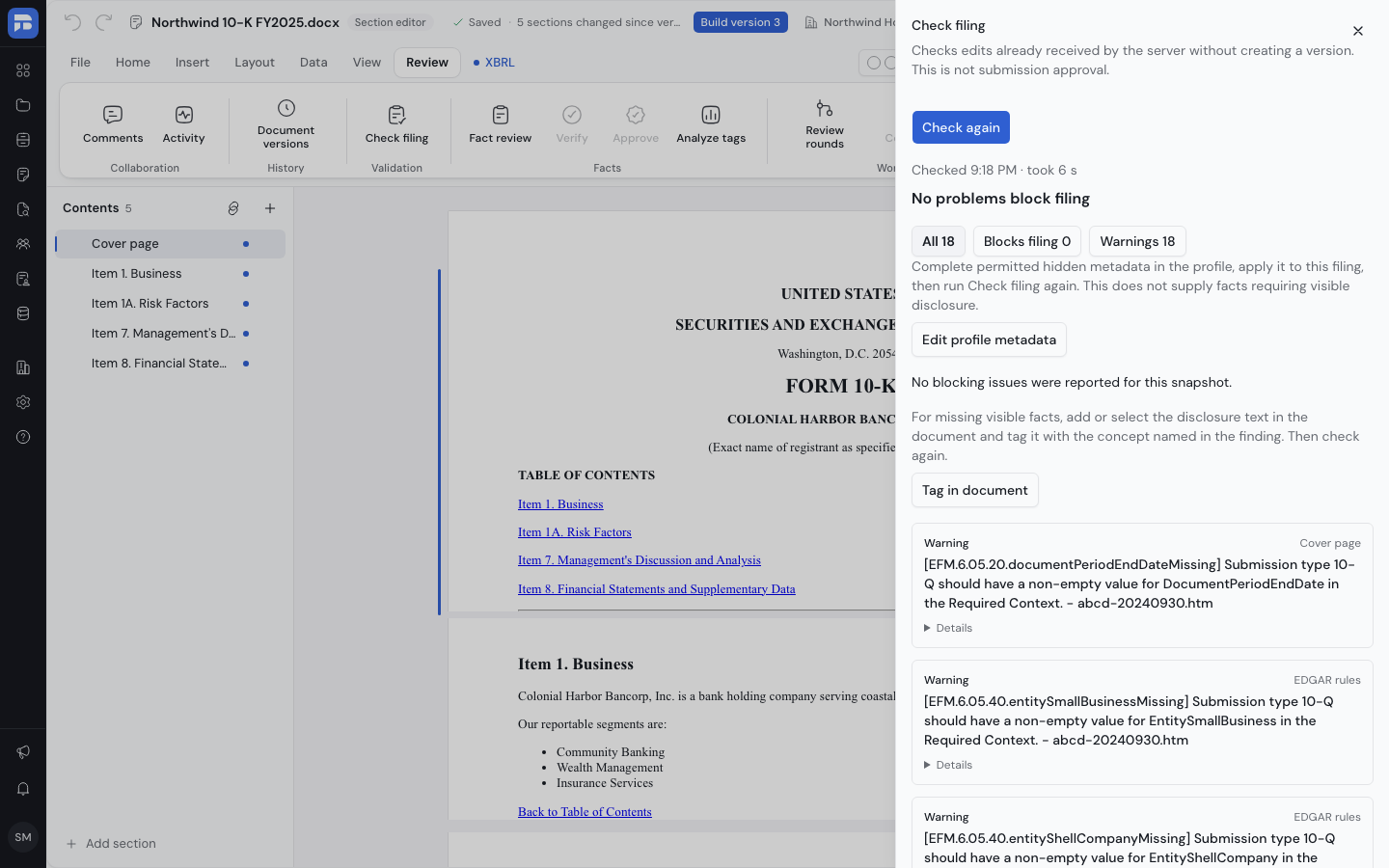
- On the Review tab, click Check filing.
- Fix the errors.
- Click Check again.
A passing check is not approval to submit.
5. Send for review and approval
- On the Review tab, click Review rounds to send the document for review.
- Reviewers verify facts. Approvers approve them.
- A certifier clicks Certify.
- Click Submit Filing to record the filing as submitted in the review workflow.
You can use each step only when the document has the right status.
6. Check Filing Readiness
- On the File tab, click Filing Readiness.
- Read the list of blockers.
- Fix each blocker.
7. Send the test filing
- On the File tab, click Submit to EDGAR.
- Keep the environment on Test (Beta) system and the submission type on Test submission.
- Click Send TEST filing.
This step is for SEC filings only. The command is not available for other filings.
Live filing is not selectable when your organization has no live access. The dialog then says so. Send a test instead.
Pre-flight checks run before you send. For each package problem, they show the file, the problem and a fix. Fix every error first. For example, EDGAR accepts only .jpg and .gif images. For an 8-K or 8-K/A, select at least one item under 8-K items (required).
8. Read the result
The dialog shows the result with the accession number and the form type. The task tray also keeps the result.
- To see every attempt, click Filing status at the bottom of the dialog.
- To ask the SEC again, click Refresh all.
- Select an attempt to see its Next step.
| Status | What to do |
|---|---|
| Pending | Wait for the SEC to finish. |
| Accepted | Nothing. |
| Accepted with warnings | Read the warnings before the live filing. |
| Suspended | Fix the cause, build a new version, and send a new test. |
| Not accepted | Read the message, fix the cause, and send again. |
| Unknown outcome | Look the filing up in EDGAR. |
While the outcome is unknown, BriskTag blocks a second send. This stops the SEC from getting a duplicate. An organization admin records what you found:
- Click SEC has it and enter the accession number, or click SEC does not have it.
- Click Record outcome.
Verified with release 2026.10