Give a client review access
A client reviews a filing through a personal invitation. You can revoke the invitation at any time. The client sees the tagged document and the SEC-style viewer. Both are read-only.
Only your organization admins can export the EDGAR filing package. A client can review everything, but cannot take the fileable package away.
1. Open Collaborate on the document
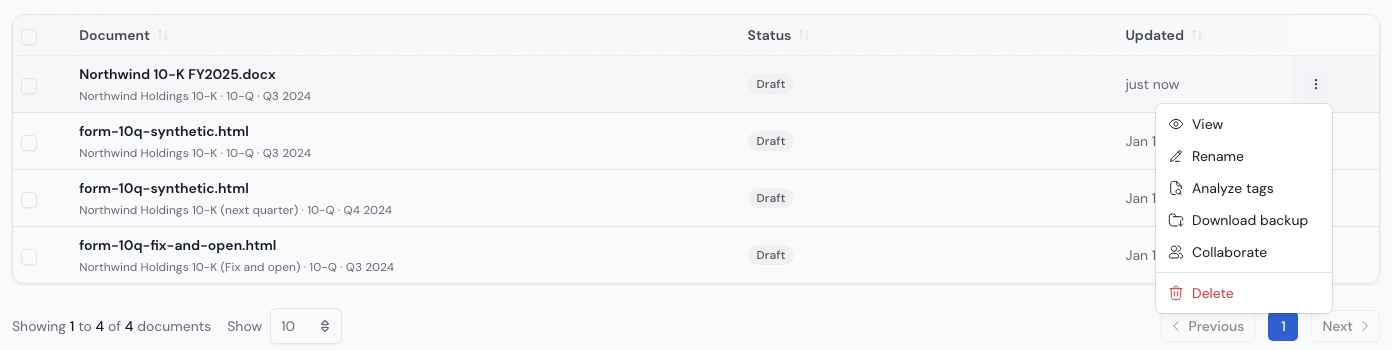
- Go to Documents.
- Find the filing.
- Open the row menu at the right end of the row.
- Choose Collaborate.
The Collaborate entry appears if you uploaded the document or if you are an organization admin.
2. Use the Collaborate dialog
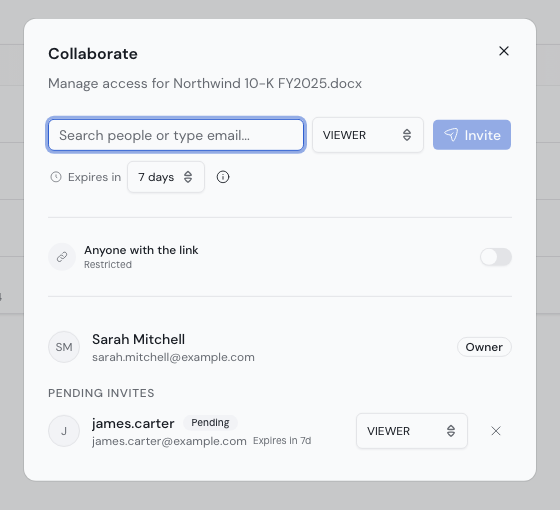
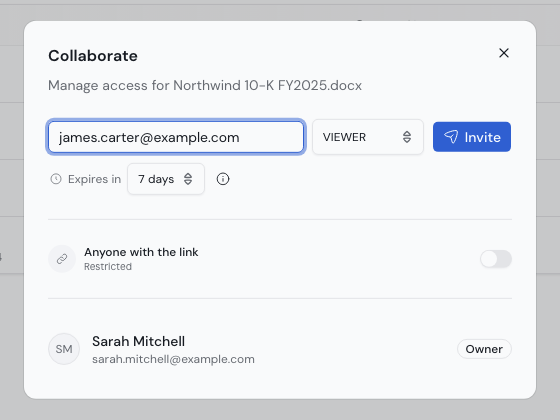
One dialog manages everything: the invitations, the role of each person, the invitation expiry, and the link-sharing switch.
Link sharing ("Anyone with the link") is off by default.
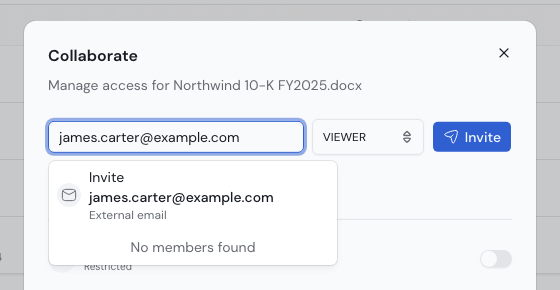
3. Enter the email address of the client
BriskTag recognizes an outside address as an external email. The client does not need to belong to your organization. The client creates a guest account from the invitation.
The client gets an invitation email with a link to accept.
4. Pick the role
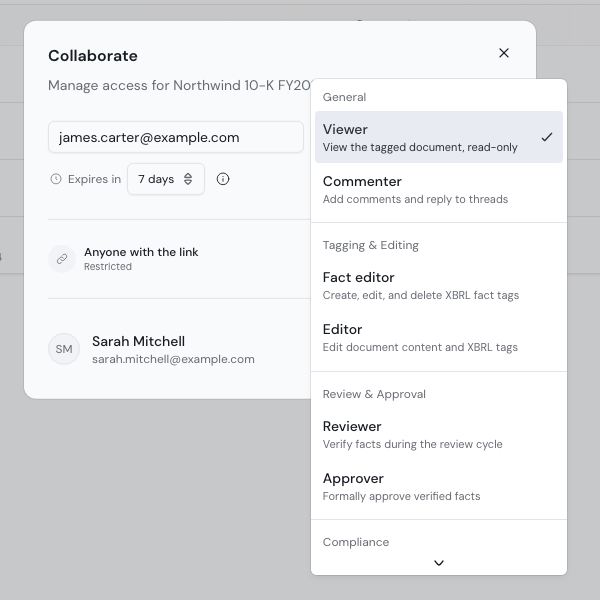
For a client, choose Viewer or Commenter.
- Viewer is read-only.
- Commenter can also comment on facts.
Use Reviewer only when the client formally verifies facts as part of your sign-off workflow.
Use the roles in the General group for clients. For all roles, see Document roles.
5. Set the expiry and send
- Set the number of days next to Expires in. The default is 7.
- Click Invite.
The client gets the email at once.
6. What the client does
- The client follows the link.
- The client creates a guest account, or signs in, with the same email address.
- The filing appears under Documents, Shared with Me.
The client sees the read-only tagged document and the SEC-style viewer. The editing, export and admin controls are hidden.
What the client can and cannot do
| Action | Allowed | Notes |
|---|---|---|
| Open the tagged filing | Yes | Read-only. Every tagged fact is visible. |
| Use the SEC-style viewer | Yes | Interactive inline XBRL review, like an EDGAR proof. |
| Comment on facts | Yes | Commenter role only. |
| Edit content or tags | No | Needs an editing role. Do not give one to a client. |
| Export the EDGAR filing package | No | Organization admins only. The server enforces this. |
| See other documents or company data | No | Access is per document. |
Change or revoke access
- Open Collaborate on the same document.
- Find the person in the list. The list shows the role of each person.
- Change the role in the list, or remove the person.
Removal takes effect at once. Expired invitations stop working on their own. BriskTag tells the client when you revoke access or change the role.
Verified with release 2026.10